
Creating a Custom Redirect Page Template in WordPress
I wanted to redirect a couple pages from in a menu that I was working on recently. It seemed like something that might be useful to others, so here is an example of a WordPress custom redirect page. You will notice I called the template Redirect. Remember to put this new template into your theme directory, or if your using a child theme put it in the child theme directory. save the page as redirect.php or you can name it any other structure you like as long as it is a php file.
Below the complete code for a redirect page template:
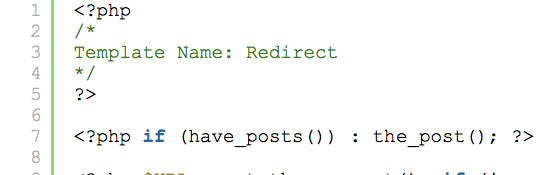
<?php
/*
Template Name: Redirect
*/
?>

<?php if (have_posts()) : the_post(); ?>

<?php $URL = get_the_excerpt(); if (!preg_match('/^http:\/\//', $URL)) $URL = 'http://' . $URL; ?>

<!DOCTYPE html PUBLIC "-//W3C//DTD XHTML 1.0 Transitional//EN" "http://www.w3.org/TR/xhtml1/DTD/xhtml1-transitional.dtd">
<html xmlns="http://www.w3.org/1999/xhtml">

<head>
<meta http-equiv="Refresh" content="0; url=<?php echo $URL; ?>">
</head>

<body>
</body>
</html>

<?php endif; ?>
Now what? How to Use The Redirect Page
- Go to Pages and create a new Page. On the right hand sidebar click the Page Template dropdown, select Redirect
- Add the URL to the content of the page that you would like to redirect to e.g. http://www.designshifts.com/digital-paintings-bobby-chiu/
- Publish the page and now the new link for http://www.designshifts.com/creating-a-custom-redirect-page-template-wordpress will be http://www.designshifts.com/digital-paintings-bobby-chiu/
Pretty simple and can be very useful. Leave a comment if you have anything to add. Hope this helps!


About Author

I'm the curator here at designshifts.com as well as being a web developer by day. I have a passion for design and love to share inspiration and tips and tricks with the community.
You created some great factors there. I did a search around the subject and found most people will agree with
your blog.
Why would you use an HTML redirect? Why not just use a PHP header redirect? i.e.
<?php

/*

Template Name: Redirect

*/
if (have_posts()) : the_post();
$URL = get_the_excerpt(); if (!preg_match('/^http:\/\//', $URL)) $URL = 'http://' . $URL;
header( 'Location: http://www.yoursite.com/new_page.html' ) ;
endif;
oops. meant to say:
<?php

/*

Template Name: Redirect

*/
if (have_posts()) : the_post();
$URL = get_the_excerpt(); if (!preg_match('/^http:\/\//', $URL)) $URL = 'http://' . $URL;
header( "Location: $URL" ) ;
endif;
Hi
I’m going to spare more time thinking about this post
This is AWESOME. I couldn’t figure out how to redirect the page. I’m new to WordPress and those darn Permalinks were confusing me. Your explanation is very straightforward, and best of all is worked!
Thanks for the fabulous help!
this worked for me when the top 2 plugins didn’t. this was helpful. many thanks!