

View Local WordPress Website on your iPhone or iPad with MAMP
I develop my web applications on a local server environment using MAMP Pro (MAC) and XAMPP (PC). There are hundreds of reason for developing locally with a PHP/MySQL/Apache environment before jumping onto your live server (speed and security being the big ones). But what if you need to test your applications not only on your desktop browsers but also on your smart phone/iPhone or tablet/iPad? * It’s a bit more complicated then just working online, you need to find a way for your devices to access your local working environment.
Lucky it’s easier then you might think.
*Everything I explain will work for most website installations (not just for WordPress installs, but there’s extra instructions at the end to help smooth out a few things that might frustrate you if you’re using WordPress).
- First make sure you have MAMP installed on your machine.
- Next step is to get your IP address on your MAC > System Preferences > Network > AirPort.
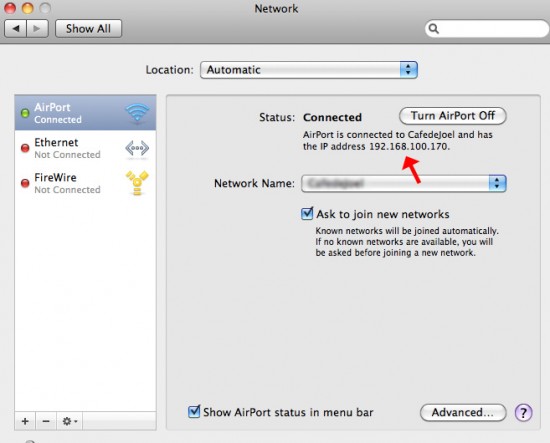
- Now you’ll need the Apache Port from MAMP. (default is 8888).
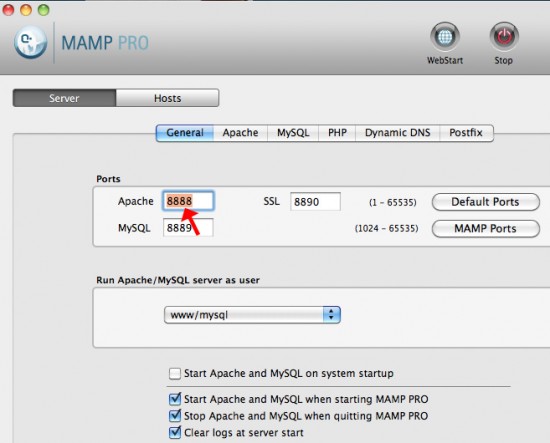
- Put these two piece of information together to make up the URL for your iPad/iPhone: 192.168.100.170:8888. (This will be your local root directory.) That’s it! If your using WordPress keep reading…
WORDPRESS (If you’ve installed WordPress then you’ll have to do a couple more things):
- First (and always) backup your database before making any major changes to your site.
- Log into your wp-admin go to > Settings > General. You need to change both the > WordPress Address (URL) and the > Site Address (URL) to match the new IP address. So in this example below you can see that I was working in a localhost and now I’m am changing them both. So From http://localhost/example-site to http://192.168.1.29:8888/example-site.
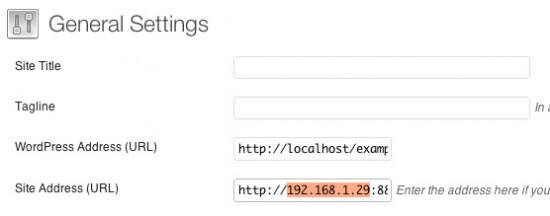
- That should do it! If you have any problems leave me a comment and I’ll see if I can help!


About Author

I'm the curator here at designshifts.com as well as being a web developer by day. I have a passion for design and love to share inspiration and tips and tricks with the community.
Great article. I wanted to add a couple of other tools to the mix as well that I like using for developing locally:
Gas Mask (for easily changing you hosts file so you can use any domain instead of /localhost/
And iOS Simulator for Mac using Xcode. You gotta dig for the dang thing though
Hope this helps somebodies!
Thanks Brian,
I’m definitely going to check out Gas Mask!
Cheers.
Gas Mask is cool, been using it for ages… although moving away from it now. Not sure if you knew but you can use:
define(‘WP_HOME’,’http://local.DOMAIN.ca’);
define(‘WP_SITEURL’,’http://local.DOMAIN.ca’);
in your wp-config file which will overwrite the domain everywhere… including the DB and all the permalinks… this makes it very easy to work with a local. domain and you can easily goto www. for the live version…
A friend of mine setup a nice environment as well where the wp-config information is stored in a separate file which does a switch statement based on an Apache variable which you can sent in Mamp pro… so the site knows automatically if it’s being run on a local box, a staging box, or live… no more wp-config changes 🙂
Maybe I’ll post this at my own blog soon.
Wow that would be awesome! Have you written this up yet Bart?
This would be great to get a hold of the method for how to do 🙂
Very nice Bart 🙂 when I restarted my machine, my IP address changed and lost what I did before in admin – so writting in wp-config is safer / i couldnt access admin url.
thanks
Hand under chin…waiting
Any time I edit wordpress site url I immediately can’t even work on my site locally, never mind viewing it outside my network. Even editing config.php and database settings, it all renders my site and dashboard unusable and uneditable.
Thought with a mac i would be lucky lol.
[quick edit]Hi Dave, 🙂 [/quick edit] you might want to check out this post, I think it answers your question: http://www.designshifts.com/how-to-move-a-wordpress-website-using-mysql-and-phpmyadmin/
If that was directed at me Topher, thx
Sorry about that dave, it was directed at you! I’m glad that did the trick for you!
Cheers,
Topher
I would just recommend using an iOS simulator although I did think this was cool for testing on a device in the office when sitting down with a client. Nice work.
Awesome tip, it worked for me, thanks a lot!!
Hello,
Thanks for the tutorial. Works great for a single WordPress install, but do you know how you can do the same with a WordPress multisite install? Been trying to do that for ages.
Thanks Joke,
I haven’t tried it with a multisite install…if I do end up playing with this I will let you know what I come up with, and if you happen to figure it out feel free to share!
Cheers.
Did you manage to use it with a multi site???
I’ve changed the IP address and the WP address and now I can’t get back in???!
Is that because i’ve got a number of sites running from one machine? please help
I don’t think the multi site would effect this process? Just replace the database w/ the backed up copy and try it again. Maybe you made a small typo in the IP address.
When I do this, I can’t see any of the images on the iPad? Any help much appreciated. I’m very amateur!
I think I might need a bit more info? So you can see you site on your localhost via your ipad/iphone right? Is it your stylesheet that’s not making the connection? Do you have to update your website links?
Can you see anything?
Hello,
I have a weird issue when trying to view my local wordpress site (which is hosted on my mac with mamp), on my PC.
Everything is working perfectly but one thing. My website contains 4 tabs. When clicking on a tab, it’s loading dynamically the content of the page (javascript). When clicking on the 3 first tabs, the content is well displaying (CSS and images are ok), but when cliking on the fourth one, all the images wont show.
The weird thing is that all the links are ok, AS on the other pages. When I try to show independently an image that wont show in a new tab, it still doesn’t work.
Do you have any idea of where it can come from ?
Pauline.
This could be a number of issues? I think I would have to see the problem? Can you send me a link to the problem site, or are you just working locally? What theme are you using?
Awesome trick! works prefectly. Thanks.
whoop! thank you
Great job !! keep it up and achive your goal
So helpful thanks a lot! Now I can test my responsive websites 🙂
Super easy, works perfectly. Thanks!!
Works an absolute treat! Thanks so much
Thanks for this, although I am using DYNDNS, which allows a free domain eg blurb-blurbedy. dyndns .info/ to point to the MAMP HTDocs directory, then just finish with the name of the site/directory within where your files (site) are/is.
What I would like to be able to do is to connect the iPad & iPhone for testing (and more importantly showing/previewing to client) a MAMP site locally on the laptop, and also to be able to show on a tethered iPad/Phone using just the usb cable when wifi is not available.
Perhaps someone know’s an app?
I guess it depends on how many people you want to be able to see it before you add it to the app store. If it’s less than 100, you can use ad hoc distribution. For that, you don’t use the app store, you can just send the app to people by email or put it online. (You’ll need the device IDs of anyone you want to be able to use it). Does that help?
Cheers.
Very well written – the best of 4 other similar posts I’ve read.
This works for me, but the style info doesn’t seem to be accessible on my other local devices:
– using the Responsive WP theme; works fine on localhost Mac
– however on other local devices (iPad, PC), all fonts are Times Roman, no images load, and there’s no ‘style’; all links work fine;
Are there some permissions I need to check? I’m new to WP and just installed it (3.5.1) and loaded the Responsive theme. No changes, just trying the vanilla version.
Thanks for any suggestions….
OK, problem solved: I had to also enter the IP into the WP address box (in addition to just in the Site Address box)…see your WP Step 3 instructions above.
Thanks Randy,
Glad it worked itself out!
Please help
how do I get back to the general settings page and change it back… I seem to have lost access to my WP back office
I love this. Cheap and easy. Thanks! If you ever get a chance to post about the multi-site set-up, please do.
Hello Topher,
Just want to say thank you for the help
Problem solved
You can also use the computer name instead of the IP.
Thanks for the post!
Styling is there and everything works great except that the images are not loading.
I’ve updated the WordPress Address and Site Address
And updated permalinks.
Any ideas?
Yikes this is just a few months to late to help you with this, but to get the images to also show up and to update all the internal links follow these instructions: http://www.designshifts.com/how-to-move-a-wordpress-website-using-mysql-and-phpmyadmin/
WP tells me the url is not valid..? then I changed it directly in mamp, as I used to do, and still not showing stylesheets on ipad but it does on computer.. ?
Perfectamondo! Thanks =)
TJ
Hi,
Just wondering if the WP address and the Site addr were saved within WP local associated files? If so can you access them or change them there, or is through the admin the only way?
Hi i’m trying to do the same but with joomla, but i’m have DB problem
“Error displaying the error page: Application Instantiation Error”
Please can someone help me? Thanks!
Thanks bro! 😀
Problem solved! Cheers!
No problem, glad it helped!
Thanks Topher.
It worked. Using the port was causing problems but took it out and then worked fine. I’m using the free version of MAMP
This has to be the best way I’ve found, for me anyway, no faffing with host files etc.
By the way I’m using XAMPP on my MAC, so XAMPP isn’t PC users only. Also XAMPP is free and very easy to use.
Great article, thanks!
That’s true, XAMPP is great and just as good on a MAC 😉 thanks Morgan (create website by the way…about time for me to update this one)
By the way I’m using Vagrant now VVV to be precise. Thanks for the compliment, I’ll be updating my site very soon, oh how time flies.
Hey nice tutorial here!
I’m using mamp pro and I changed my Apache port to 80, MySQL 3306, SSL, 8890 so that I wouldn’t have that :8888 at the end of my url.
But all I’m getting is an error:
“Forbidden, you don’t have permission to access / on this server”
Any ideas on how to fix this?
Thanks
try changing the directory permissions from "None" to "access files" as a first step if this doesn’t work let me know.
Does this típ work with free version of MAMP ?
I tried but…. It doesn’t work…
Yes it should also work with the free version. Where are you getting stuck?
Thanks, it works for me, but I did a workaround that I have added to wp-config.php at line 37, it looks like this:
/** If the site is running under local network. */
$autoDetectServer = true;
if($autoDetectServer)
{
$path = $_SERVER[‘REMOTE_ADDR’] . dirname($_SERVER[‘PHP_SELF’]);
define(‘WP_HOME’, ‘http://’ . $path);
define(‘WP_SITEURL’, ‘http://’ . $path);
}
It’s me again, there is an error in the code, just change:
$_SERVER[‘REMOTE_ADDR’] .
to
$_SERVER[‘SERVER_NAME’]
Here is very nice script i build that will handle that and much much it offers two solutions a terminal script app and a web app. Both will get latest wordpress and installed it and configure mamp to map and create your lcoal host here is the link https://github.com/michelve/wordpress-mamp-localhost-generator
Beautiful! Just hope my last number in my ip does not change. Afraid it might, and then I have to go through phpmyadmin and change it.
Well…my IP did change! And now I am fixing the adress in the database. Not that great.
it freaking worked!
sometime ago I looked and looked for this solution and no one seemed to give a clear and concise answer… they talked of proxies and port forwarding on the router- and file permissions-
I think I was just overwhelmed with the amount of walk-thru’s I found, so I just gave up trying to make it work.
I was in a situation today where I needed to access a MAMP install of wordpress from another macbook and subsequently from an iPhone and iPad…. I googled ‘wordpress MAMP LAN 2015’ and your post came in 3rd- when i started to read I thought I was wasting my time again… but I stand corrected, you nailed the exercise spot on- good job!
thank you for sharing.
PS: the site I accessed was using some plugins that I had to go and redo the sliders and widgets to point again to the resources using the updated (http://x.x.x.x:8888) address, very small panic but my first instinct to re-ad the images worked
Hi,
I followed the steps above and instantly received the following error message:
"Corrupted Content Error
The page you are trying to view cannot be shown because an error in the data transmission was detected."
Now I cannot access my admin panel to change my settings back.
When I access the site now, I see the content, but with no styles applied and none of the links working.
Help!
Update to my previous comment: I was able to change the settings manually by accessing phpMyAdmin and changing the "home" and "siteurl" options there. Glad this worked for other people, but I will definitely be looking for other ways to test mobile sites.
Hi tried to open my localhost webiste on ipad, but it saying "cannot open the page because too many redirects occured".
Please help
R
I have never been able to use this technique without immediately breaking my entire wordpress site. I’m surprised that this issue hasn’t been covered in these comments
Hey Topher!
Thank you so much for this!!!! It works like a charm. I do however have a question. When Im finished with my clients site and am ready to export the database to their hosting provider, do I have to change the WP URL and site address URL to their actual website name? For example. Now, I have them both as http://192.168.x.xx:8888/blabla
Do I have to change them to: http://www.blabla.com
before I export the database? Hope that makes sense. Thanks.